

Set Up SAML SSO for Microsoft Entra ID
Who can use this feature
Anyone with these permissions: Manage SAML group access
This article explains how to create a custom SAML app in Microsoft Entra ID to enable SAML SSO for Eon. After completing this process, users who are members of the groups you’ve mapped can log in to Eon using SAML SSO.
If you’ve already configured SAML and want to adjust groups, skip to Map SAML groups in Eon.
Configure Entra ID SAML SSO
You’ll find the SAML SSO page under Access management in your global management console in Eon. Identity providers and their group mappings are both on this page.
Before you start
Before you start, make sure:
-
You’re a Microsoft Entra ID administrator.
-
You have the permissions in Eon mentioned at the top of this article.
-
There’s a role that has the exact permissions you want to grant to the group. If there isn’t one, you can create a custom role.
Copy Eon's service provider details
In Eon, go to the SAML SSO global management page. Click Add Identity Provider. Once you have at least one identity provider, this button is a icon in the header of the Identity providers panel.
The Add identity provider dialog lists Eon’s service provider details, which you’ll paste into Microsoft Entra ID, each with a copy button. Keep the dialog open because you’ll need these values in the next steps.
Create the SAML application in Microsoft Entra ID
In a new tab, open the Microsoft Entra admin center, navigate to Manage > Enterprise applications and do these steps:
-
Click New application. The Microsoft Entra gallery opens.
-
Click Create your own application. The Create your own application dialog opens.
-
In the Create your own application dialog:
-
Give a meaningful app name, such as
Eon. -
Select Integrate any other application you don’t find in the gallery (Non-gallery).
Click Create. The new application takes a few moments to be created. When it’s done, the application’s overview page opens.
-
Set the basic SAML configuration
Configure the Entra SAML app’s settings to connect Microsoft Entra ID with Eon.
In the new application’s settings:
-
Select Manage > Single sign-on from the left menu.
-
Choose SAML as the sign-on method. The application’s SAML configuration page opens.
-
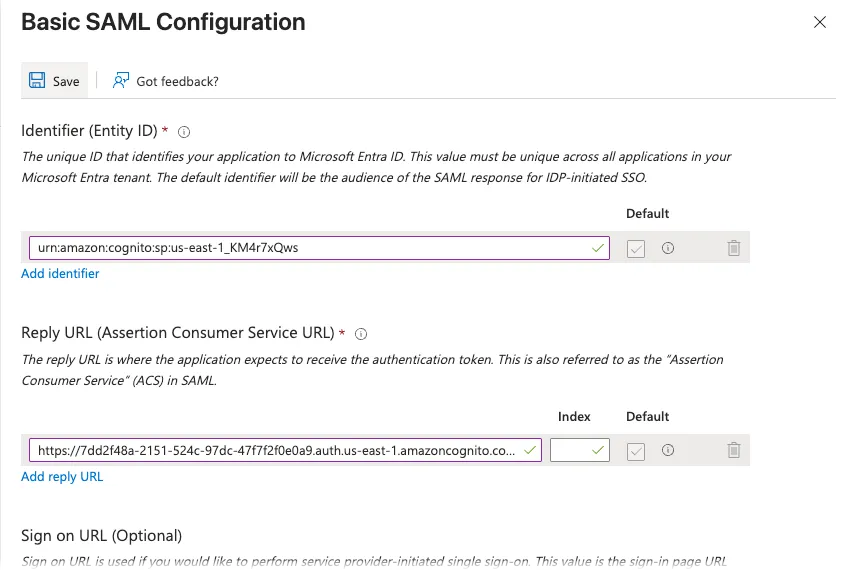
In Basic SAML Configuration, click Edit. Paste Eon’s service provider details from the Add identity provider dialog you left open in Eon. Leave all other settings as their default values:
-
Save.
Set the SAML claims
Configure the claims to send the user’s email address and group memberships to Eon.
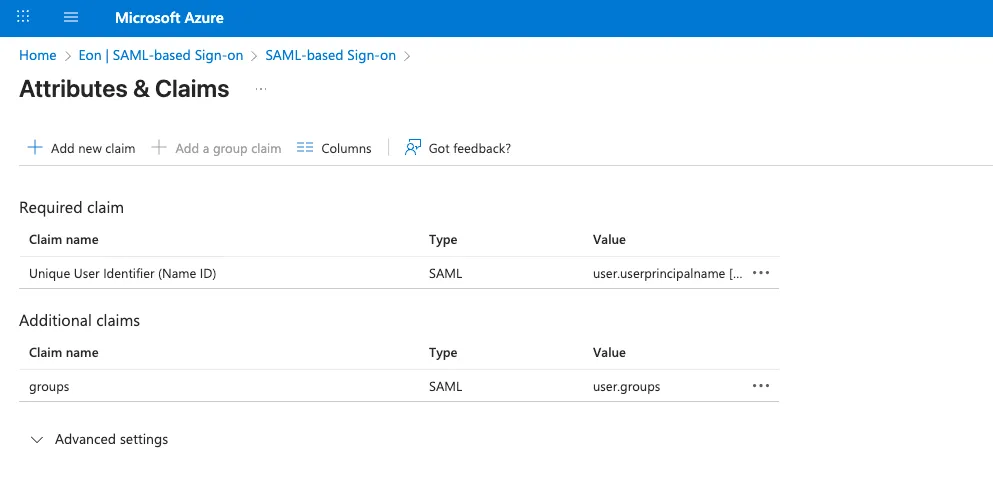
In Attributes & Claims, click Edit. Set the details as follows:
-
In Required claim, set a single claim using the Email address format and the user.userprincipalname source attribute.
-
In Additional claims, delete all the default claims.
-
Click Add a group claim. You’ll see a list of options for which groups to return in the claim.
-
Choose All groups.
-
Set Source attribute to Group ID.
-
In Advanced options, select Customize the name of the group claim, and set Name to
groups.
If a user belongs to more than 150 groups, Microsoft Entra ID omits sending the group claims with their SAML assertion, effectively preventing them from logging in to Eon. You’ll need to work around this limitation by limiting the number of groups sent with the SAML assertion. You can do this in a number of ways, including filtering groups or allowing only groups assigned to the application.
See Configure group claims for applications in the Microsoft Learn docs for more information.
-
-
Save.
Return to the app’s SAML configuration page.
Assign groups to the application
Assign user groups to the Eon application to control which users can access Eon through SAML SSO.
-
In the Manage > Users and groups page, click Add user/group.
-
On the Add assignment page, click None selected under Users and groups.
-
Choose the groups you want to be able to access Eon.
-
Click Select to return to the Add assignment page, then click Assign.
Download the SAML certificate
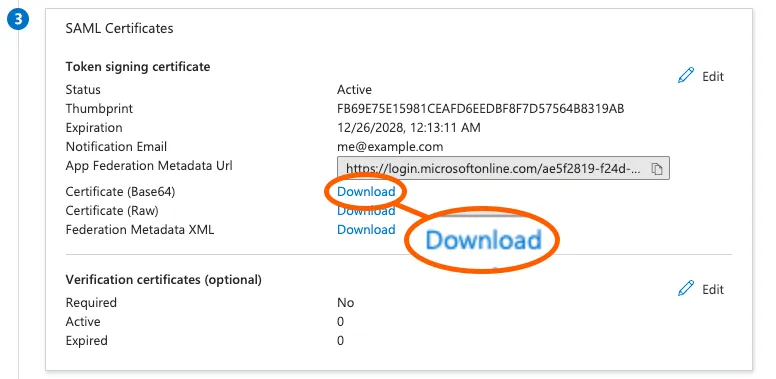
In SAML Certificates, find the Certificate (Base64) entry and click Download.
Open the certificate file in a text editor to confirm you downloaded the correct file.
The certificate’s first and last lines are -----BEGIN CERTIFICATE----- and -----END CERTIFICATE-----, respectively.
Have the certificate contents ready to copy to Eon in the next step.
Copy the SAML settings to Eon
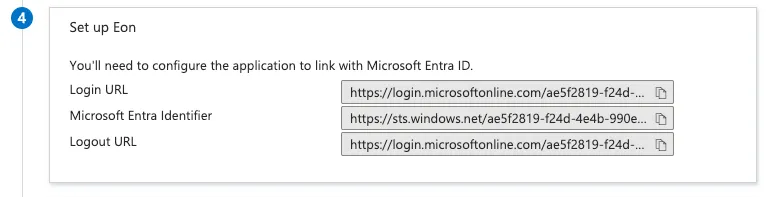
Return to the Add identity provider dialog in Eon. Enter the provider details from Microsoft Entra ID. You’ll find them in the SAML configuration page in Set up:
-
Give a meaningful Display name, such as
Microsoft Entra ID. You can’t change it later, so pick a name you’ll recognize. -
Paste the corresponding information from Microsoft Entra ID:
-
Click Add Identity Provider.
Map SAML groups in Eon
Although SAML SSO is now enabled on your Eon account, SAML users can’t log in yet because they have no Eon access by default. To grant access, you need to map your SAML groups in Eon.
Click Add Group Mapping. The New group mapping dialog opens.
Set these options:
-
SAML identity provider: Choose the Microsoft Entra ID identity provider you just added.
-
Group ID: Enter the group’s ID your identity provider passes in the SAML assertion. This must be an exact match with the assertion. This is case-sensitive, so
eon viewersandEon viewersare different groups.Microsoft Entra ID uses the group’s GUID as the group ID. You can find the GUID in the group’s properties in the Microsoft Entra admin center.
-
Label: Optionally, give the group a display name so it’s more recognizable in Eon.
Then choose the roles you want to assign to the group. You can assign multiple roles.
Click Create.
SAML configuration changes can take up to 15 minutes to take effect.
Eon-initiated login
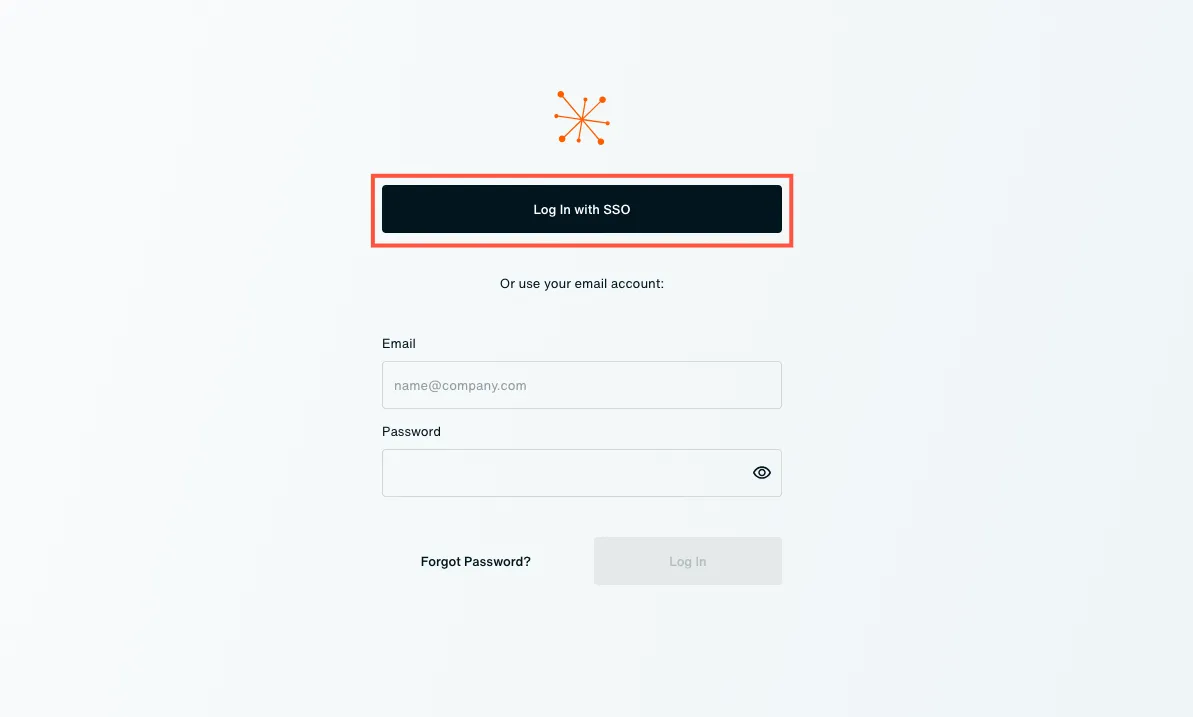
After setup and group mapping, your users can log in to Eon using their Entra ID credentials. Let them know and share these directions with them:
-
Go to your Eon domain’s login page (for example,
https://your-company.console.eon.io/login). -
Click Log In with SSO. Enter your Entra ID credentials and sign in.
On successful login, you’re redirected to the Eon console.