

About Backup Policies
This article explains the basics of backup policies and how they work in Eon.
A backup policy sets what resources Eon backs up, how long to retain backups, and where to store snapshots. Backup policies also enable security monitoring by determining which resources are monitored for ransomware detection.
Backup policies are closely related to vaults. Vaults are the storage locations where Eon stores snapshots. You specify a vault to store the snapshots in when you create a backup policy.
Eon backs up only the resources assigned to a backup policy. In other words, if you never create a backup policy, Eon never backs up your resources.
Additionally, resources must be backed up by Eon to be eligible for ransomware detection. When you assign a backup policy to ransomware detection, all resources covered by that policy are automatically monitored for ransomware indicators.
Backup policy types
These tables show the different types of backup policies and the resources they support.
Cloud workloads:
*For most resources, standard backup policies store snapshots in Eon vaults. Some resources support storing snapshots in cloud-provider-managed vaults in the source accounts instead. See Storage options below.
SaaS applications:
Cloud workloads
For cloud workloads, the component parts of a backup policy are resource selection (which includes dynamic resource selection and manual overrides) and backup schedules (which includes basic schedules, advanced schedules, and PiTR schedules for point-in-time recovery policies).
Storage options
Standard backup policies typically store snapshots in Eon vaults across AWS, Azure, and GCP. However, some resources support alternative storage locations that use cloud-provider-managed vaults in your source accounts.
When you create a standard backup policy, you can choose where to store snapshots:
-
Vault: Backs up assigned resources to your Eon vault. Resources backed up with this method are processed through your scanning account and, if applicable, are available through the file explorer and database explorer.
-
AWS source account: Backs up assigned resources to an AWS Backup Vault in the source account. Resources backed up with this method aren’t scanned and aren’t available through the file explorer or database explorer. Supported resources: FSx, EFS, and RDS.
-
Azure source subscription: Backs up assigned resources to an Azure Recovery Services vault in the Azure source subscription. Resources backed up with this method aren’t scanned and aren’t available through the file explorer or database explorer. Supported resources: Azure file shares (classic).
Resource selection
Resources can be assigned to a backup policy using a combination of dynamic resource selection and manual overrides. Dynamic resource selection sets the baseline for which resources are included in the policy by default. Manual overrides allow you to include or exclude resources by ID, regardless of whether they’re included in the dynamic selection.
The options for dynamic selection are:
-
Include all: All resources are included in the backup policy by default. If the policy type doesn’t support all resources, only the supported resources are included.
-
Use conditions: Only the resources that match the conditions you set are included in the backup policy by default. If new resources that meet the conditions are discovered, they’re also included in the backup policy.
-
Exclude all: No resources are included in the backup policy by default. Using this option means that, unless you include resources with manual overrides, no resources are backed up by the policy.
With Include all or Use conditions, the list of resources assigned to the policy can change over time. As Eon discovers new resources that match the policy’s selection criteria, those resources are automatically included in the policy and backed up on the next scheduled run.
The component parts of a backup policy are conditions, manually assigned or excluded resources, and backup rules.
Conditions
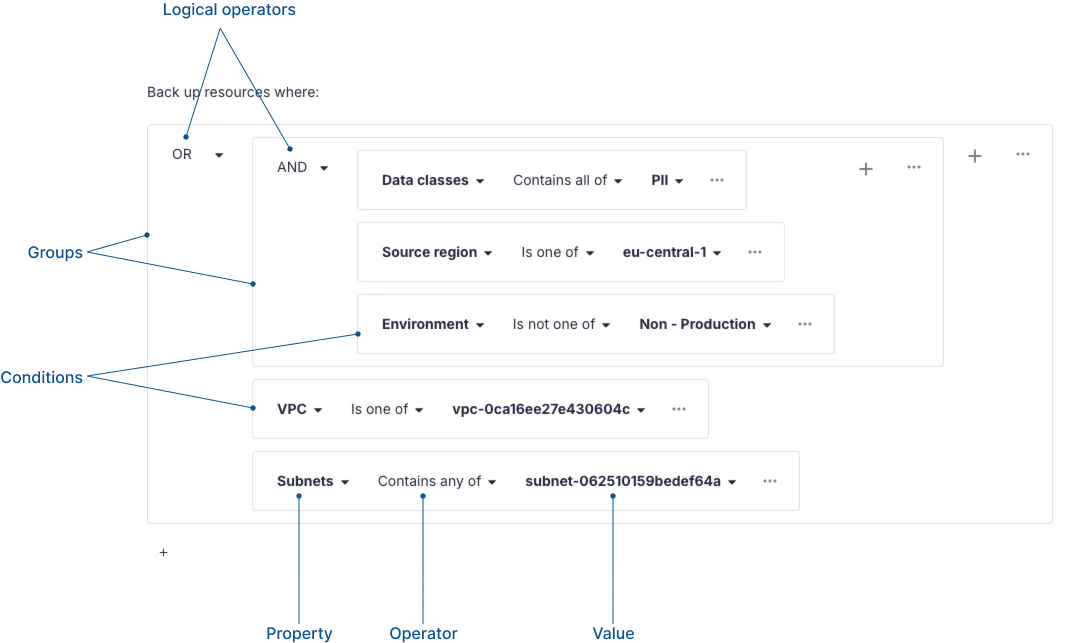
Conditions are the logic that determines which resources the backup policy applies to. You can set conditions against specific resource properties, like environment, data classes, or tags. You can set a simple AND or OR list of conditions, or you can group conditions for fine-tuned targeting of resources.
This image shows a set of conditions with groups and individual conditions:
-
A condition is a single, atomic logical unit that’s made up of a property, an operator, and a value.
-
A group is a collection of conditions that are evaluated together as a logical unit. Groups can contain any combination of conditions and nested groups.
-
The logical operator applies to all the component conditions or groups on a single level. Every group has an AND or OR logical operator.
Manual overrides
Manual overrides allow you to include or exclude resources from a backup policy by resource ID, overriding the dynamic selection.
You can provide IDs for resources that aren’t in your inventory yet, but that you anticipate will be discovered at some point in the future. For example, you might have a resource in a source account you haven’t connected yet, but you want to back it up anyway. When the resource with the provided ID is discovered, your manual override will take effect.
You can also provide IDs for resources that are already in your inventory.
Backup schedules
Schedules control the frequency of how often Eon takes a snapshot of your resources, as well as the retention period and vault where the snapshot is saved.
This section covers:
- Basic schedules
- Advanced schedules
- PiTR schedules (for point-in-time recovery policies)
Basic schedules
With basic schedules, you’ll choose the frequency, and Eon automatically sets the start time for backups.
Basic schedules follow this pattern:
Advanced schedules
Advanced schedules offer more flexibility and control than basic schedules, but they require more upfront configuration. With advanced schedules, you’ll set the desired start time and an acceptable start time range between 4 and 22 hours.
The available schedule options depend on the frequency you choose. For frequencies smaller than a day, Eon sets the start times at regular intervals beginning at 00:00 and calculates the start time range.
PiTR schedules
For point-in-time recovery policies, you’ll set PiTR schedules to control the frequency of PiTR backups. PiTR schedule frequency can be every hour, 30 minutes, or 15 minutes.
PiTR schedules must conform to these requirements:
-
A vault can be used by one PiTR schedule.
-
The vault in a PiTR schedule must be used by a backup schedule whose frequency is daily or more frequent, and whose retention period is longer than the PiTR retention period.
BigQuery PiTR backup policies don’t use PiTR schedules or vaults. Instead, they leverage BigQuery’s native time travel feature with a fixed 7-day retention window. For more information, see GCP: BigQuery Support.
Source account storage configuration
When storing snapshots in the source accounts, additional configuration options are available during policy creation:
-
Vault protection (AWS source account): Enhances security for AWS Backup Vaults by applying vault locks or creating logically air-gapped vaults. Vault protection modes include None, VaultLockGovernance, VaultLockCompliance, and AirGapped. See Manage Backup Policies for details on configuring vault protection.
-
Backup storage redundancy (Azure source subscription): Determines how Azure replicates data in the Recovery Services vault (LRS, ZRS, or GRS). This setting is immutable after the vault is created. For details on redundancy options, see Azure: File Share (Classic) Support. For configuration steps, see Manage Backup Policies.
SaaS applications
For SaaS applications, each backup policy protects a single connected application, and the policy itself sets what to back up inside that application.
Google Workspace backup policies
A Google Workspace backup policy protects one Google Workspace. In the policy, you choose which workspace users, groups, and shared drives to back up, and which organizational units and groups to exclude.
Users, groups, and shared drives
A workspace can be assigned to only one Google Workspace backup policy at a time.
Within the workspace, you choose what to back up in three parts:
-
Users: By default, all organizational units and groups are backed up, which covers every user’s Gmail mailbox and Drive. You can then exclude specific organizational units, specific groups, or both.
-
Groups: Backs up your Google Groups, including each group’s settings and membership.
-
Shared drives: Backs up the shared drives in the workspace.
New users are picked up automatically as Eon discovers them, unless they belong to something you excluded.
Group and organizational unit exclusions
What you exclude takes precedence over everything else. If a user belongs to an excluded organizational unit or an excluded group, that user isn’t backed up, even when they also belong to an organizational unit or group you’re backing up.
For example, if you exclude a DevOps group, a user who belongs to both DevOps and Engineering isn’t backed up, even though Engineering is included.
To back up that user, exclude neither of their groups, or exclude a narrower group that they don’t belong to.
Schedule
A Google Workspace backup policy has exactly one schedule that always runs daily. The frequency can’t be changed. When you create the policy, you choose a start time, a retention period, and the vault to store snapshots in.
See Manage Backup Policies for configuration steps, and Google Workspace Support for what data Eon backs up and restores.
Microsoft 365 backup policies
You choose which users and SharePoint sites to back up in the policy.
Users and sites
A Microsoft 365 backup policy protects one Microsoft 365 tenant, and a tenant can be assigned to only one Microsoft 365 backup policy at a time.
Within the tenant, you choose whose Exchange mailbox and OneDrive account to back up:
-
Back up all users: All current users are included, and new users are included automatically as they’re discovered.
-
Back up direct members of specific groups & teams: Only users who are direct members of the groups or Microsoft Teams you select are included. Nested group members aren’t included, and the group or team itself isn’t backed up as a distinct object. See Group and team selection in Microsoft 365 Support for how Eon backs up a group’s members.
You also choose which SharePoint sites to back up:
-
Back up all sites: All sites are included by default. You can optionally exclude specific sites.
-
Back up specific sites: Only the sites you select are included.
-
Don’t back up sites: No SharePoint sites are backed up. Mailboxes and OneDrive accounts are still backed up according to your user selection.
Teams
The policy’s Microsoft Teams section is a separate selection from Users, and it controls whose channel messages Eon backs up:
-
Back up all Teams: Every team in the tenant is included, and teams discovered later are included automatically. You can optionally exclude specific teams in Optionally exclude Teams.
-
Back up specific Teams: Only the teams you select are included. Unlike Back up all Teams, this option doesn’t add teams discovered after you save the policy, so a new team isn’t backed up until you select it.
-
Don’t back up Teams: No channel messages are backed up.
Channel files aren’t part of the Microsoft Teams selection. They’re stored in SharePoint, so your SharePoint sites selection covers them instead.
See Microsoft 365 Support for what Eon backs up from a team and what it leaves out.
Schedule
A Microsoft 365 backup policy has exactly one schedule that always runs daily. The frequency can’t be changed. When you create the policy, you choose a start time, a retention period (including unlimited retention), and the vault to store snapshots in.
See Manage Backup Policies for configuration steps, and Microsoft 365 Support for what data Eon backs up and restores.
Microsoft Entra ID backup policies
A Microsoft Entra ID backup policy protects one Microsoft Entra ID tenant, and a tenant can be assigned to only one Microsoft Entra ID backup policy at a time.
Directory scope
Each job captures the whole directory as one snapshot, covering every user and group, along with the tenant’s roles, role assignments, and licenses.
Schedule
A Microsoft Entra ID backup policy uses the same schedule options as a standard policy. You choose the frequency, the start time, the retention period, and the vault to store snapshots in. Snapshots are stored in a vault in Azure.
See Manage Backup Policies for configuration steps, and Microsoft Entra ID Support for what Eon backs up and restores.