

Handle Infected Resources
Available for Amazon EC2, Amazon RDS, Amazon S3, Azure Database for PostgreSQL flexible server, Azure Storage Accounts, Azure Virtual Machines, SQL Server on Azure VMs, Google Cloud SQL, and Google Compute Engine.
Who can use this feature
Anyone with these permissions: Restore resources, Restore files
When ransomware is detected in your resources, you have several options to investigate and respond to the threat. This article describes the different ways you can view and respond to infected resources with Eon.
Find infected resources
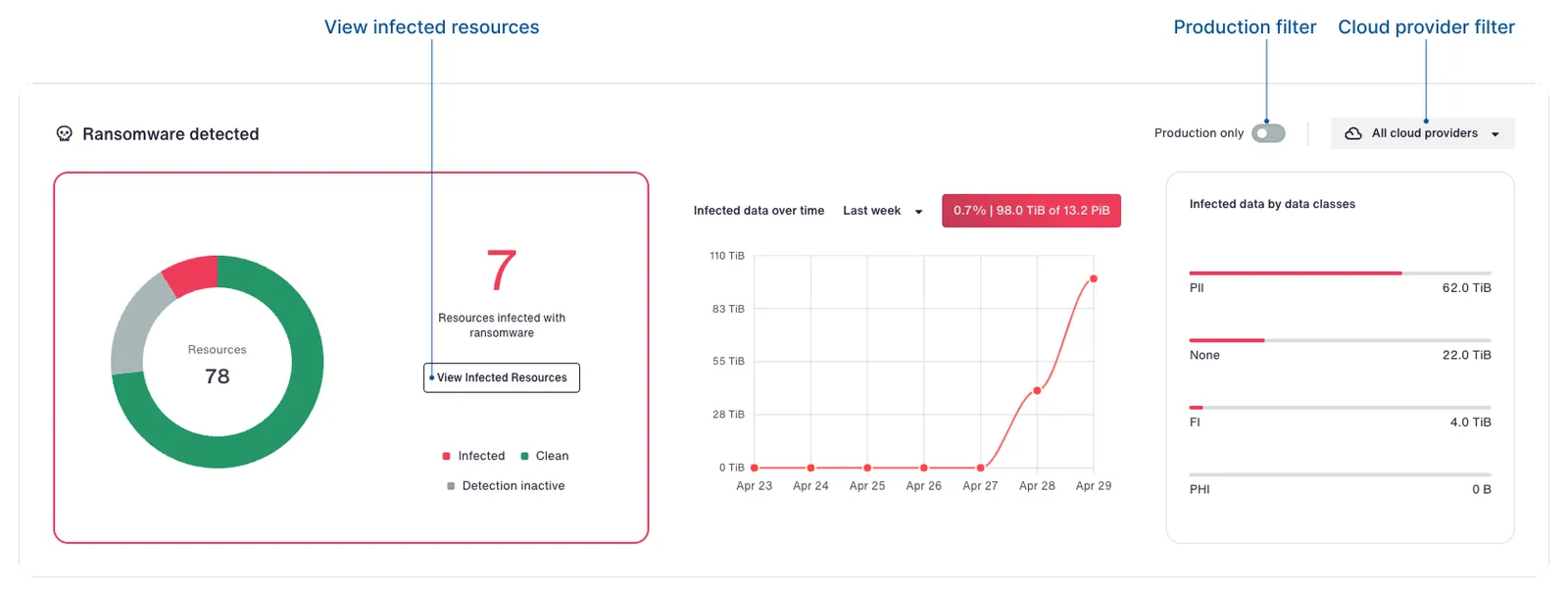
You can use the dashboard and inventory to quickly find infected resources.
From the dashboard
-
To filter for production resources, turn Production only on.
-
By default, the dashboard shows ransomware findings for all cloud providers. You can use the cloud provider filter to focus on a single provider.
-
Click View Infected Resources to filter for infected resources in the inventory.
From the inventory
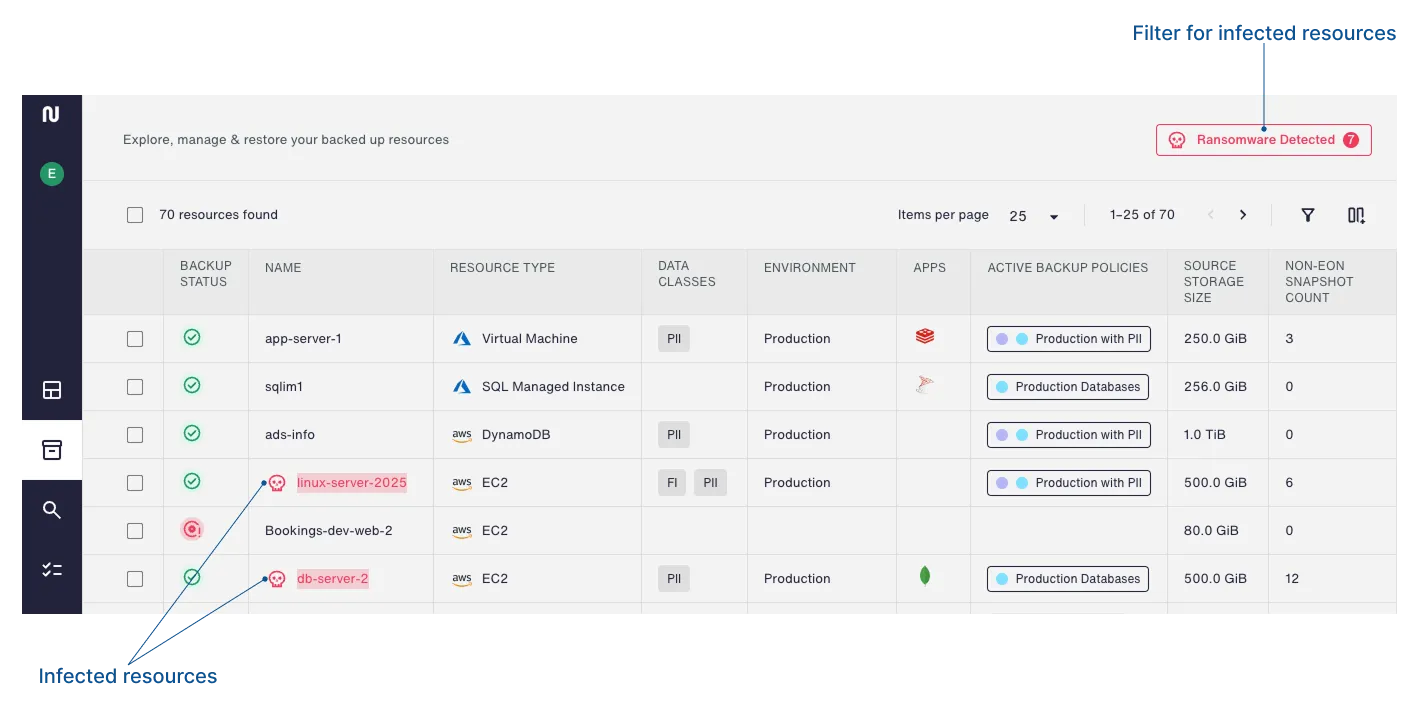
When viewing your inventory, you can recognize ransomware-infected resources by the skull icon.
-
To filter for infected resources, click the Ransomware Detected button in the upper right corner.
-
To see details about a resource’s ransomware indicators, click the resource to open the resource details panel.
Eon treats a resource as infected only if its latest snapshot is infected. The resource is considered clean if the latest snapshot is clean, even if any previous snapshots are infected.
Find infected snapshots
You can find infected snapshots from the inventory.
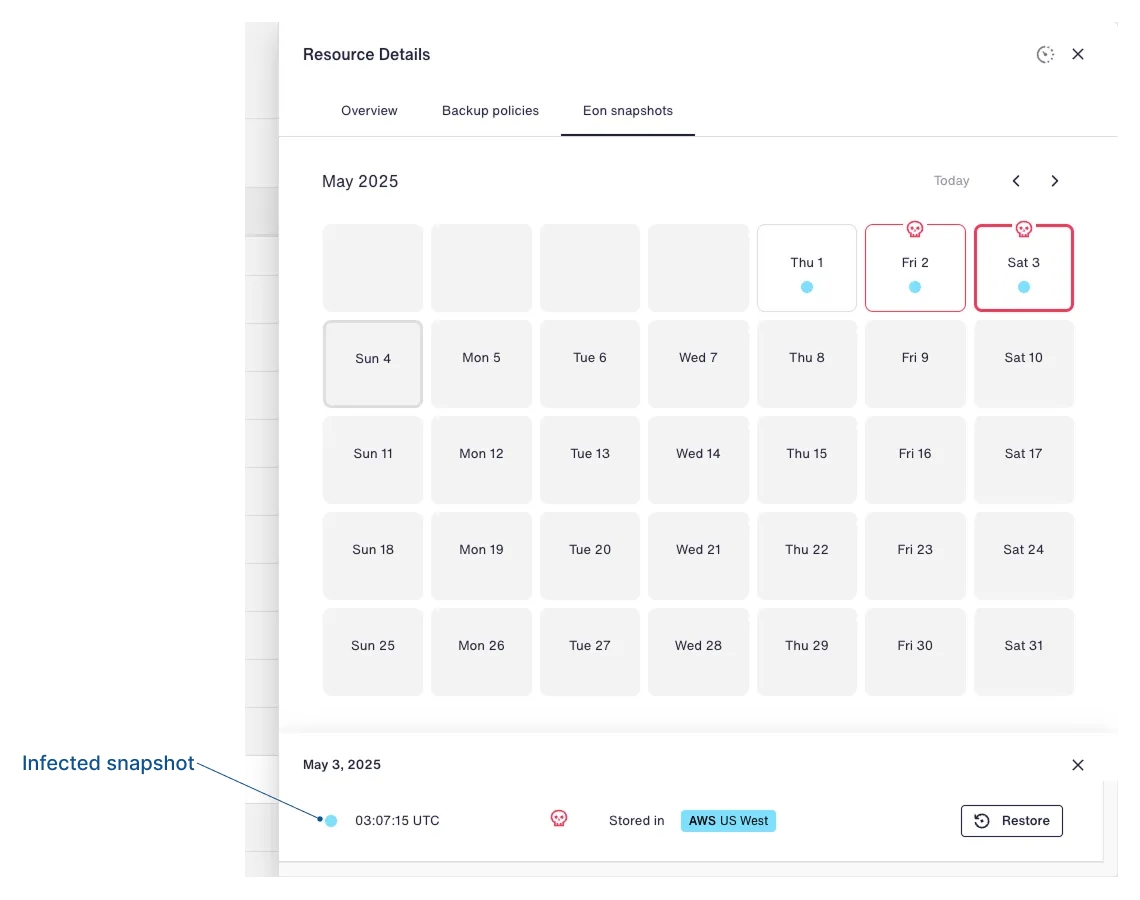
To see a resource’s infected snapshots:
-
Find the resource in the inventory, and click its name to open the Resource details panel.
-
Click the Eon Snapshots tab to see the calendar view.
Days with at least one infected snapshot are shown with the ransomware icon. Infected snapshots are likewise displayed with the ransomware icon.
Find infected files
You can find infected files by browsing a resource in the file explorer, or you can use the inventory to surface infected files.
From the inventory
-
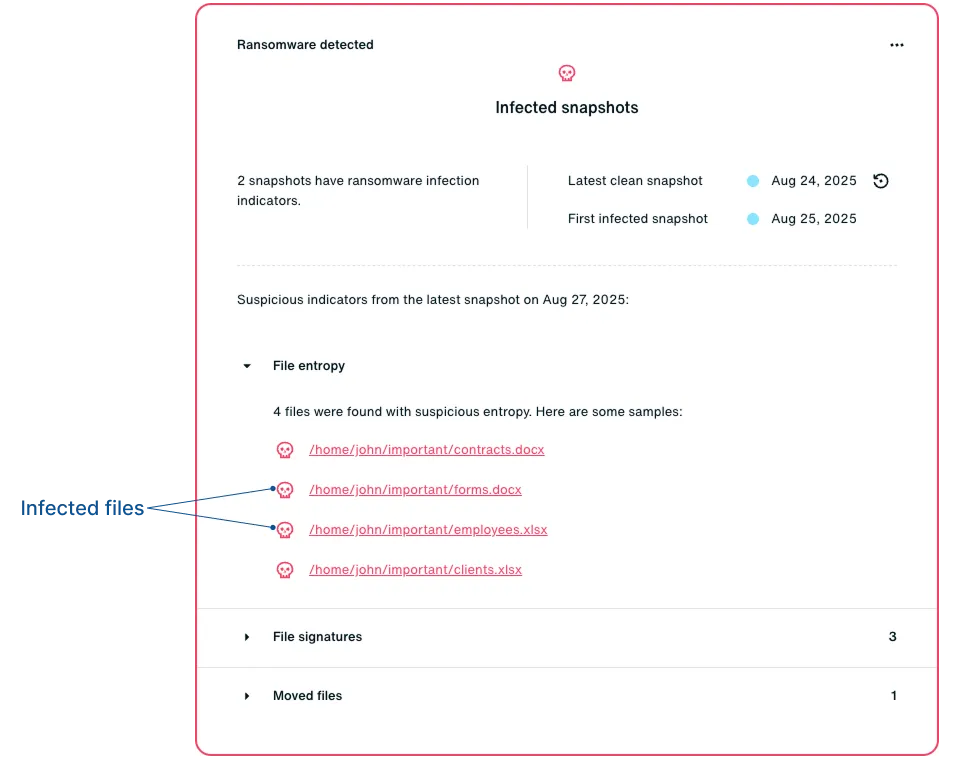
In the infected resource’s Resource details panel, find the Ransomware detection section.
-
Expand File entropy, File signatures, or Moved files to see a sampling of infected files or folders. Note that this section shows only a small sample of the infection. There may be many other files that are also infected.
-
Click a file or folder to open the file explorer, focused on the selected file or folder.
From the file explorer
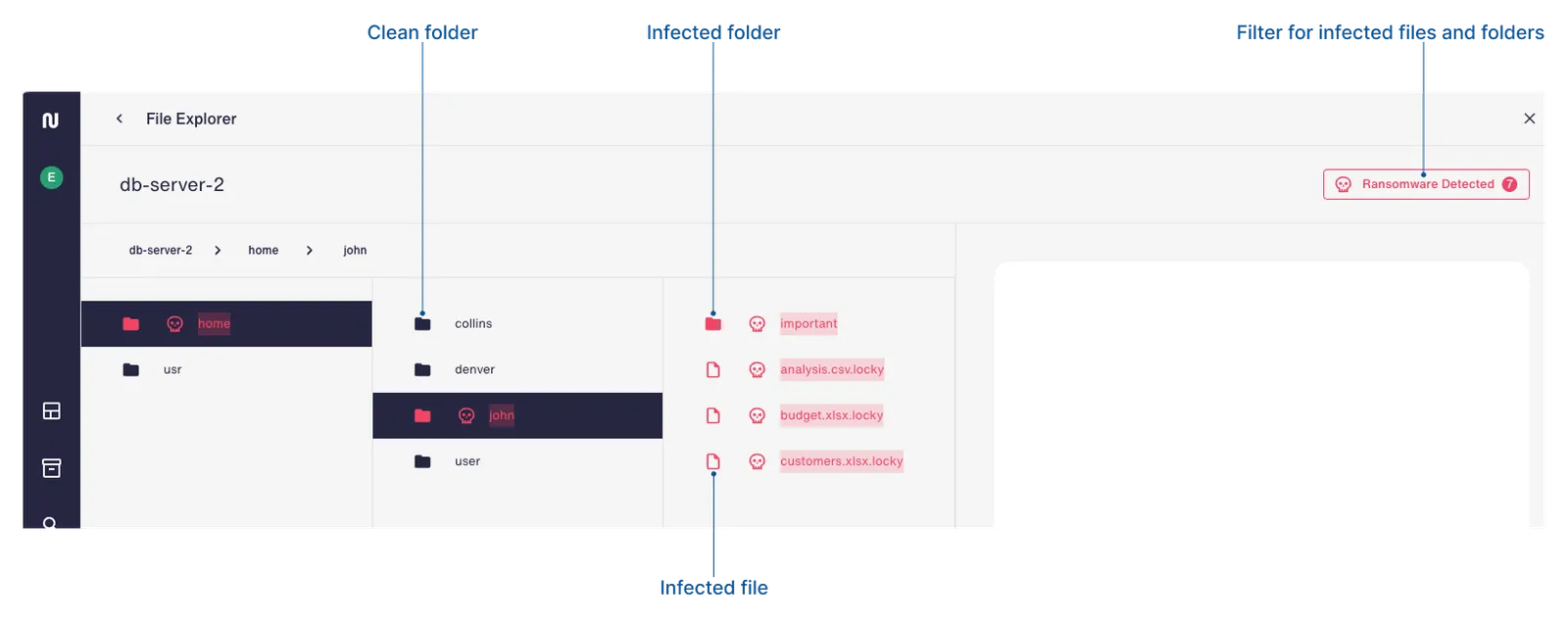
The file explorer shows infected files across all snapshots in a unified view, meaning files are shown as infected if they were compromised in any currently retained snapshot, even if the current snapshot is clean. You can see ransomware indicators at both the folder and file levels, and restore the latest clean copy of any file.
Files and folders are shown with the ransomware icon if they were infected in any snapshot currently in retention.
-
A folder is marked as infected if it contains at least one infected file, either directly or in a subfolder.
-
A file is marked as infected if at least one snapshot of the file is infected.
Restore a clean resource snapshot
When you have an infected resource, you can restore the latest clean snapshot or choose a specific clean snapshot to restore. Either way, you’ll take the action from the resource details panel in the inventory.
From the resource overview
In the Infected snapshots section of the Overview tab, click Latest clean snapshot > (Restore). A restore wizard is opened for the resource type you’re trying to restore.
From the calendar view
If you choose not to restore the latest clean snapshot, or if you want to restore something other than the full resource, you can use the calendar view in the Eon snapshots tab. Note that the ransomware icon is shown on days with at least one infected snapshot, but those days may contain clean snapshots.
Restore a clean file snapshot
You can restore a clean file snapshot from the file explorer.
Note that files and folders are considered infected if these conditions are met:
-
Files: At least one of their snapshots is infected.
-
Folders: At least one file has at least one infected snapshot. The file can be in the folder or a subfolder.
Infected files and folders are shown with the ransomware icon.
Select a file to see its snapshots. Infected snapshots are shown with the ransomware icon. Select a clean snapshot and click Restore. The Restore file wizard is opened and guides you through the restore process.