

Manage Notification Policies for Splunk
Who can use this feature
Anyone with these permissions: Manage notification policies
This article explains how to create notification policies that send notifications to Splunk via the HTTP Event Collector (HEC).
Eon sends audit log events to Splunk. To connect Eon to Splunk, you need a Splunk HEC URL and an authentication token.
Create a notification policy for Splunk
Before you start
Make sure you have access to your Splunk instance with permissions to manage HEC tokens.
Find your Splunk HEC URL
Your Splunk HEC URL is the endpoint Eon sends events to. The format depends on whether you’re using Splunk Enterprise or Splunk Cloud Platform:
Replace {your-splunk-server} or {yourcompany} with your instance’s hostname.
Note your HEC URL because you’ll need it when configuring the notification policy in Eon.
Create a HEC token
In this step, you’ll create an authentication token that Eon uses to send events to your Splunk instance.
-
In Splunk, go to Settings > Data Inputs, and then select HTTP Event Collector.
-
If HTTP Event Collector is not enabled, click Global Settings, set All Tokens to Enabled, and click Save.
-
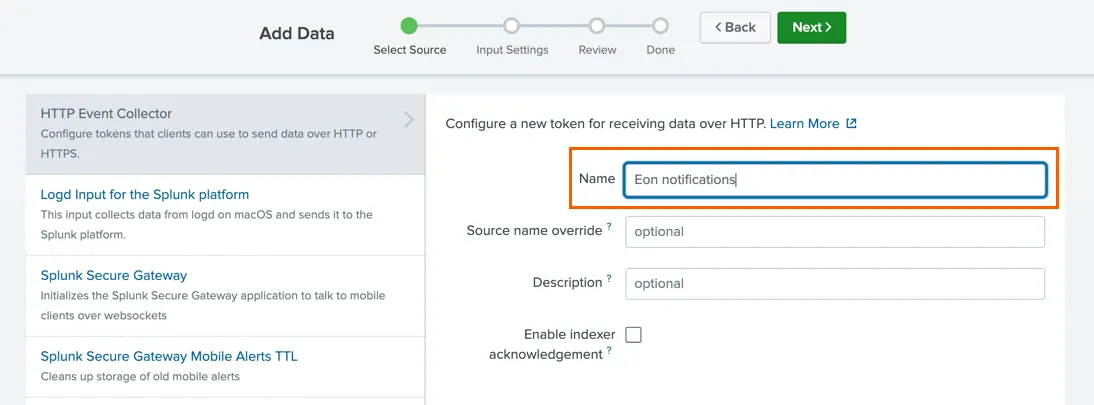
Click New Token. The Add Data wizard opens.
-
Enter a meaningful Name for the token (for example,
Eon notifications)., then click Next. -
On the Input Settings page, accept the defaults or configure a source type and index, then click Review.
-
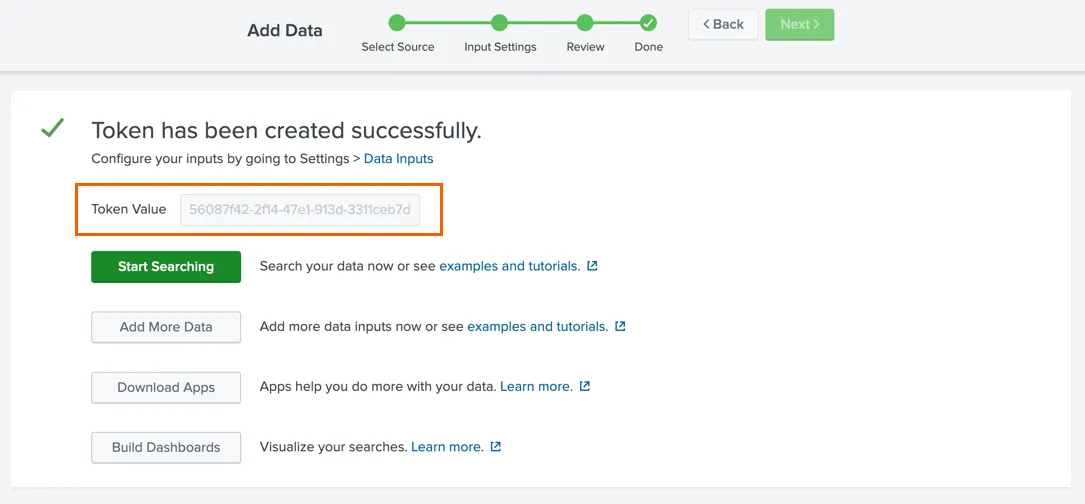
Review the settings and click Submit. A success message and your HEC token are shown.
-
Copy the token value shown on the confirmation page. Save it in a temporary location so you can provide it in Eon.
The token value is shown only once after creation. If you navigate away without copying it, you’ll need to create a new token.
Create the notification policy in Eon
In this step, you’ll use the HEC URL and token from the previous steps. Log in to your Eon project to complete this step:
-
In your project’s Notification Policies page in the Eon console, click Create Notification Policy. The Create a Notification Policy wizard opens.
-
Enter a Notification policy name that describes the Splunk instance notifications will be sent to.
-
Choose the Splunk notification channel type, then click Next.
-
Enter these values:
-
Click Test and Create.
Eon sends a test event to your Splunk HEC endpoint to confirm the connection.
If the test succeeds, the notification policy is created.
If the test fails, check that the HEC URL and token are correct, and that HTTP Event Collector is enabled in your Splunk instance.
Your notification policy is now set up, and Eon will send audit log events to your Splunk instance when subscribed events happen.