

Manage Dashboards
Who can use this feature
Anyone with these permissions: Manage dashboards (Cloud workloads, SaaS applications)
You describe a dashboard once, and the Eon AI Assistant builds its panels (charts, tables, and single values) from your Eon data. You can then check the answers to your backup, cost, and compliance questions on one page instead of cross-checking several console pages.
This article explains how to create a dashboard from a description, then edit, share, or delete it. You own the dashboards you create, and only an owner can edit, share, or delete one, as Dashboard visibility describes. For what dashboards can show, see About Dashboards.
Create a dashboard with AI Assistant
You can create a dashboard from the Dashboard page in the Eon console.
-
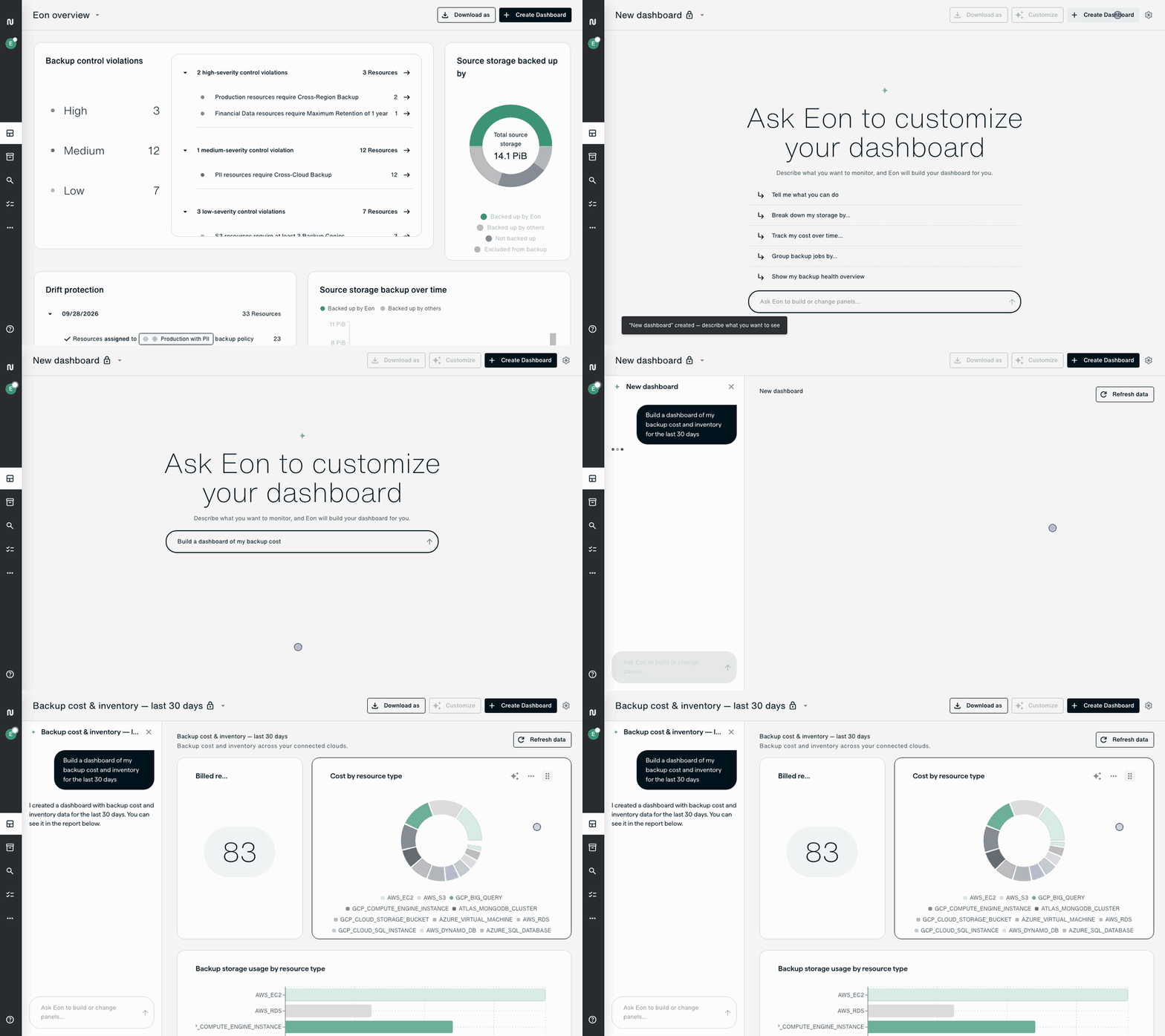
Click Create Dashboard.
A dashboard named New dashboard opens on a prompt that asks what you want to monitor.
-
Pick a suggested prompt, or write your own, and send it.
The panels that match your request are displayed on the dashboard, and the chat stays visible so you can keep prompting and refining. AI Assistant also titles the dashboard, replacing New dashboard, unless you’ve already renamed it. By default, the dashboard is visible only to you.
Refine a dashboard with AI Assistant
You can refine a dashboard from the Dashboard page in the Eon console.
-
To refine the whole dashboard, click Customize in the dashboard header.
To refine one panel instead, click Customize in that panel’s header.
-
Describe the change in the chat and send it.
If you chose a panel, it attaches to the message box, and the panel is tagged in your message. The attachment applies to your next message only. To refine the whole dashboard instead, click the ✕ on the panel in the message box to detach it, or click Customize in the dashboard header.
AI Assistant can change other panels when it applies your request, so review the whole dashboard when it finishes.
Resize, rename, reorder, or delete a panel
You can change a panel from the Dashboard page in the Eon console.
-
To change a panel’s width, click the panel’s (Actions) menu, then choose a Width.
-
To rename a panel, click the panel’s (Actions) menu, choose Rename, type the new title, then press Enter or click .
-
To delete a panel, click the panel’s (Actions) menu and choose Delete panel.
-
To reorder panels, drag a panel by its grip, or focus the grip and use the arrow keys.
The dashboard shows your changes.
Rename a dashboard
You can rename a dashboard from the Dashboard page in the Eon console.
-
Click the arrow next to the dashboard’s name to open the dashboard selection menu.
-
On the dashboard’s row, click the (Actions) menu, then click Rename.
-
Type a name in the page header, then press Enter or click .
The dashboard shows its new name.
Edit dashboard visibility
Users in your Eon account with permissions to view dashboards can open a dashboard you share, as Dashboard visibility describes. They find it under Shared with you.
You can change a dashboard’s visibility from the Dashboard page in the Eon console.
To share a dashboard:
-
Click the arrow next to the dashboard’s name to open the dashboard selection menu.
-
On the dashboard’s row, click the (Actions) menu, then click Share with everyone.
To make a shared dashboard private again:
-
Click the arrow next to the dashboard’s name to open the dashboard selection menu.
-
On the dashboard’s row, click the (Actions) menu, then click Make private.
You can also change who can open a dashboard from (Dashboard settings). Under Access, select (Shared with everyone) or (Private).
Delete a dashboard
Deleting a dashboard is permanent.
You can delete a dashboard from the Dashboard page in the Eon console.
-
Click the arrow next to the dashboard’s name to open the dashboard selection menu.
-
On the dashboard’s row, click the (Actions) menu, then click Delete dashboard.
-
Confirm the deletion.
The dashboard is removed for you and for everyone it was shared with.