Recover from a Threat with AI Assistant
Who can use this feature
Anyone with these permissions: Use AI assistant (Cloud workloads, SaaS applications), Restore resources, View restore templates
When Eon’s threat detection flags ransomware, malware, or data anomalies in your resources, the Eon AI Assistant takes you from the finding to a restore plan, so you can recover the affected resources without piecing the evidence together yourself. It changes nothing until you approve the plan it writes.
This article explains how to investigate infected resources with AI Assistant, review its remediation plan, and approve it. To find and restore infected resources yourself, see Handle Infected Resources.
Recover flagged resources
You can start agentic remediation from the Remediation center page in the Eon console.
Before you start
Remediation restores only EC2 instances and S3 buckets. Resources of other types can’t be remediated with AI Assistant.
Investigate the findings
-
Close any open side panel.
The Agentic remediation button is unavailable while another side panel is open.
-
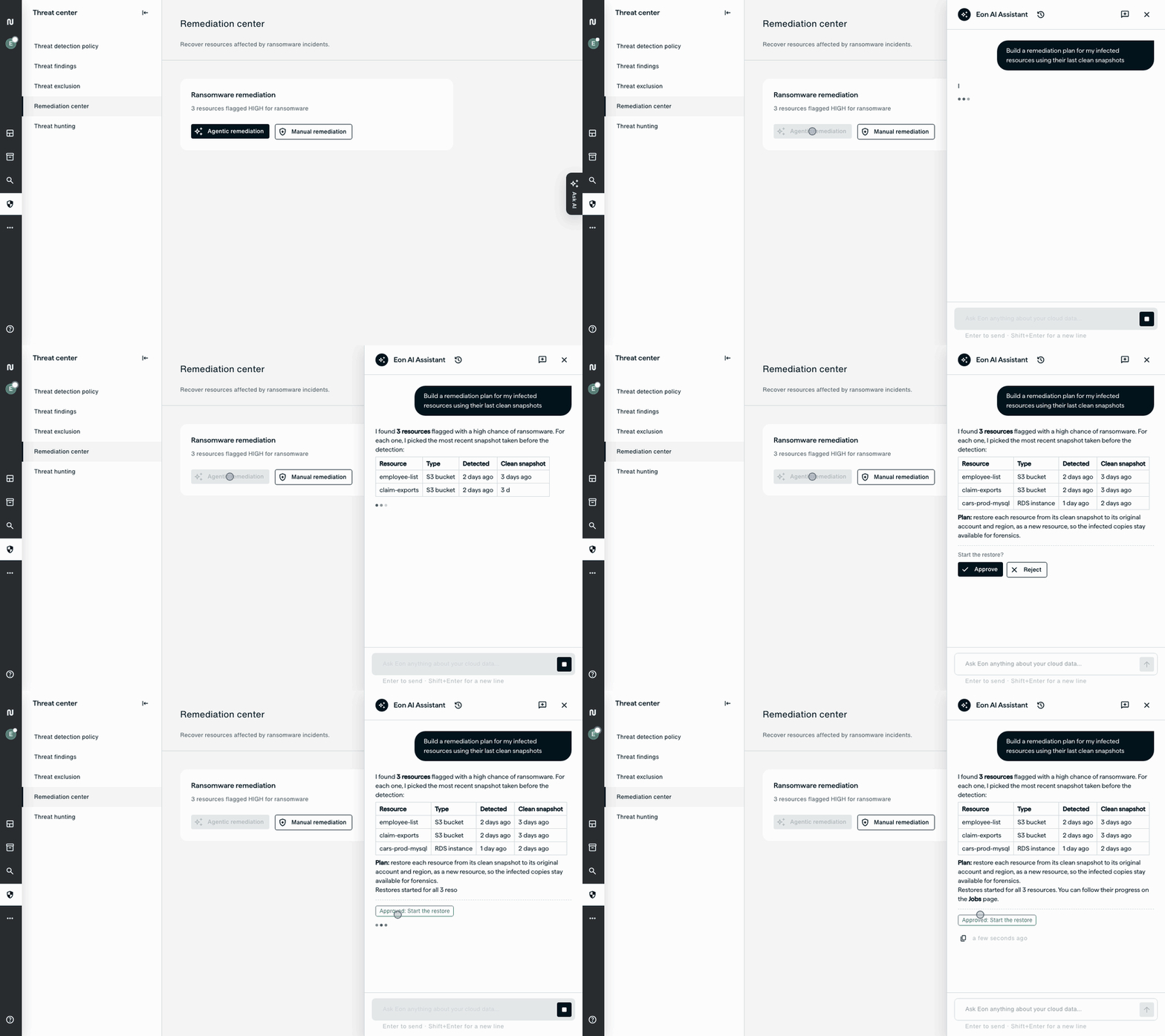
Click Agentic remediation.
AI Assistant opens with a remediation prompt and starts investigating.
The button is available only when a resource is flagged for ransomware. For malware or data anomalies, ask AI Assistant in a chat to build a remediation plan for your infected resources.
AI Assistant finds the resources with ransomware, malware, or data anomaly findings and summarizes the evidence for each one.
Review the plan
For each affected resource, AI Assistant finds the most recent clean snapshot and writes a remediation plan in the chat as a proposal.
Check that the plan lists the resources you expect, with the snapshot chosen for each. Resources shown as excluded with the reason no restore template need a template before they’re restored. Choose one from the templates AI Assistant offers. AI Assistant never applies one on its own.
Approve the plan
Click Approve in the chat.
Where an action approval rule covers the action, confirming it in the chat submits it for approval rather than starting it. AI Assistant can’t approve the request, and neither can you, because the person who requests an action can’t approve it. The action then waits for your approvers exactly as one you submit yourself does. Once they’ve approved it, you can start it from the My requests page. Only you, as the requester, can do that.
Where no rule covers the action, confirming it in the chat starts it.
One run covers up to 500 resources. If more are flagged, run Agentic remediation again once the first batch is done. If AI Assistant proposes phases, ask it to continue to move to the next one.
To track the restores once they start, see the Restore jobs page.